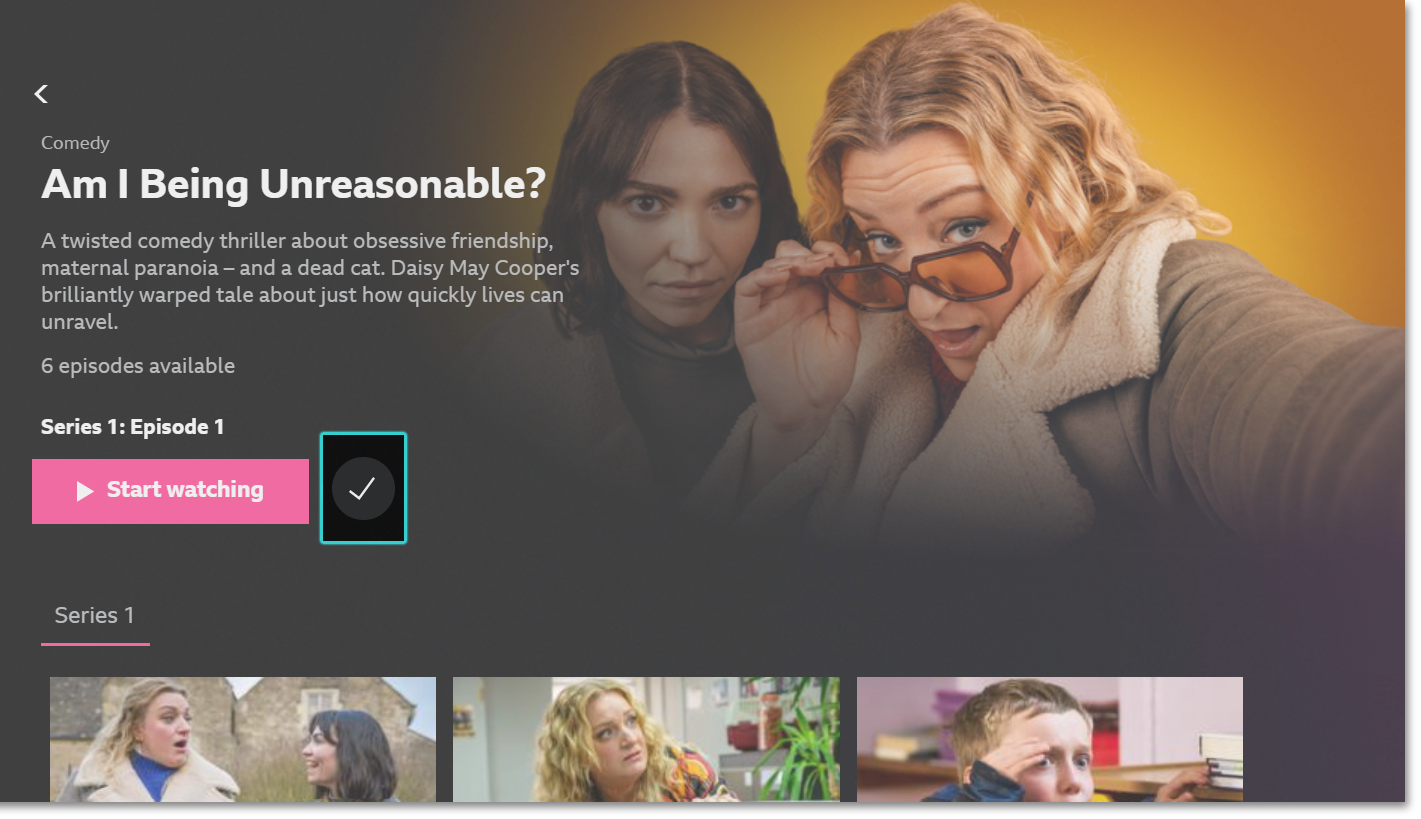
Short on time but seen something you want to watch? Just add it and come back to watch it later.
Once added, you’ll be able to access the programme on other devices you’re signed in on. Programmes will stay in your Watchlist for as long as they’re available to watch on BBC iPlayer (unless you remove them yourself). All future episodes of the programme you’ve added will appear in your Added/Watchlist list when they’re available.
How do I add a programme?
- On the BBC iPlayer website
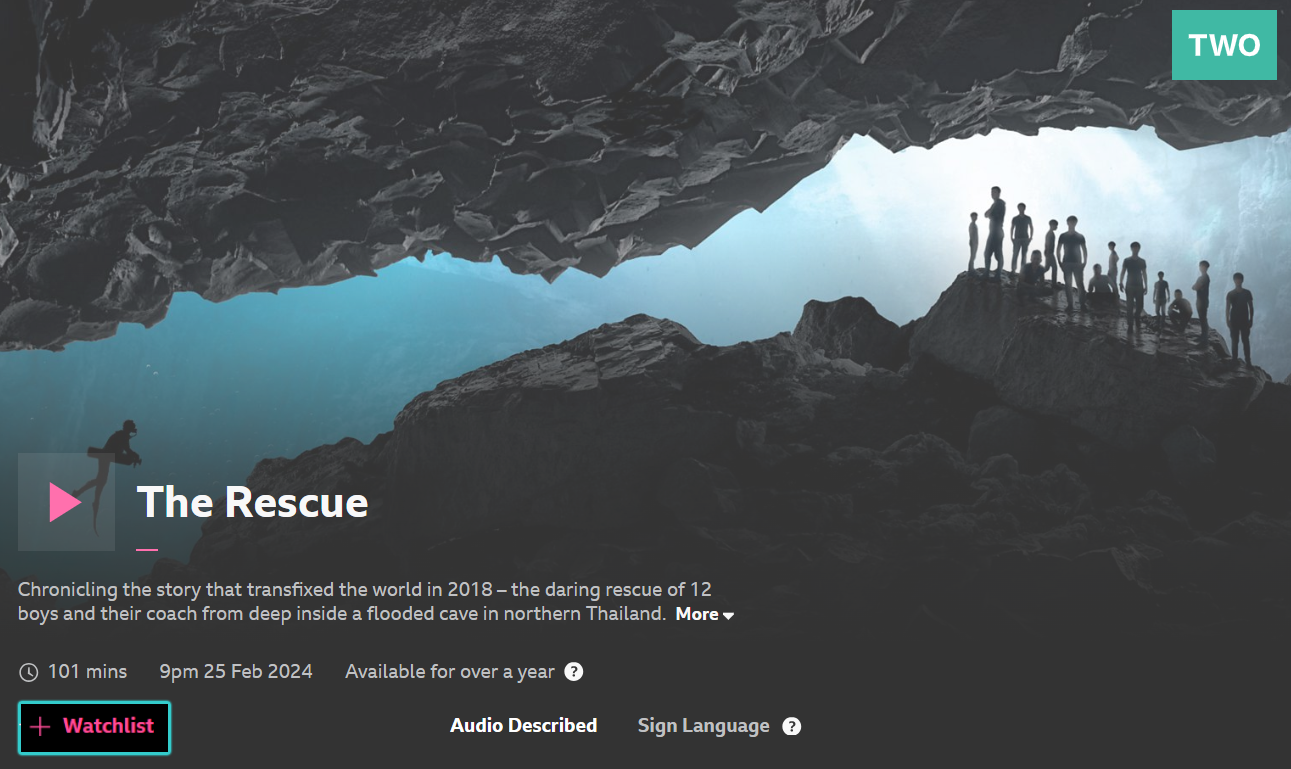
Find the programme you want to add. Click on the + Watchlist button at the bottom left corner of the episode screen.
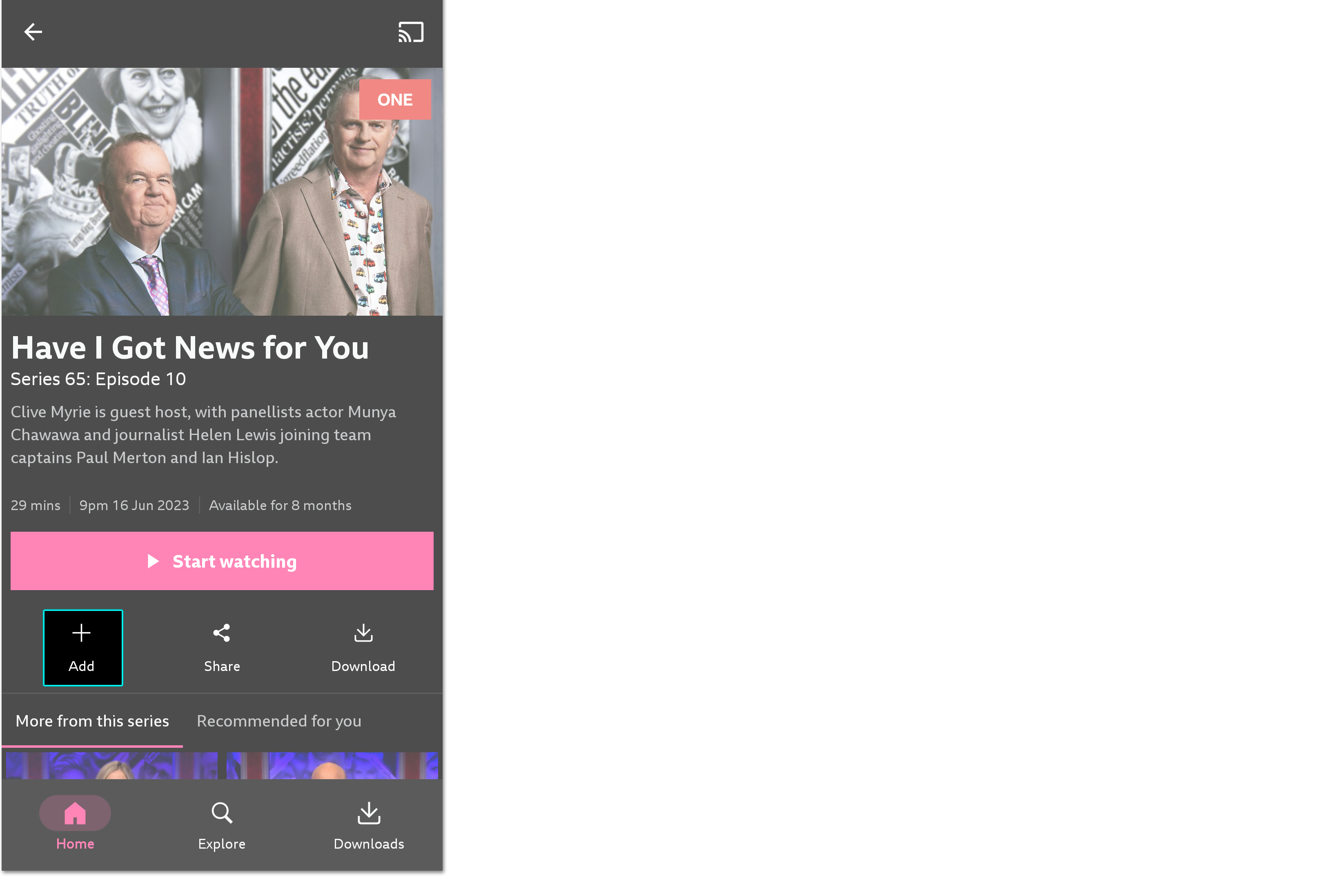
- On the BBC iPlayer app for mobiles and tablets
Tap on the programme you want to add and then tap + Add under the playback area.
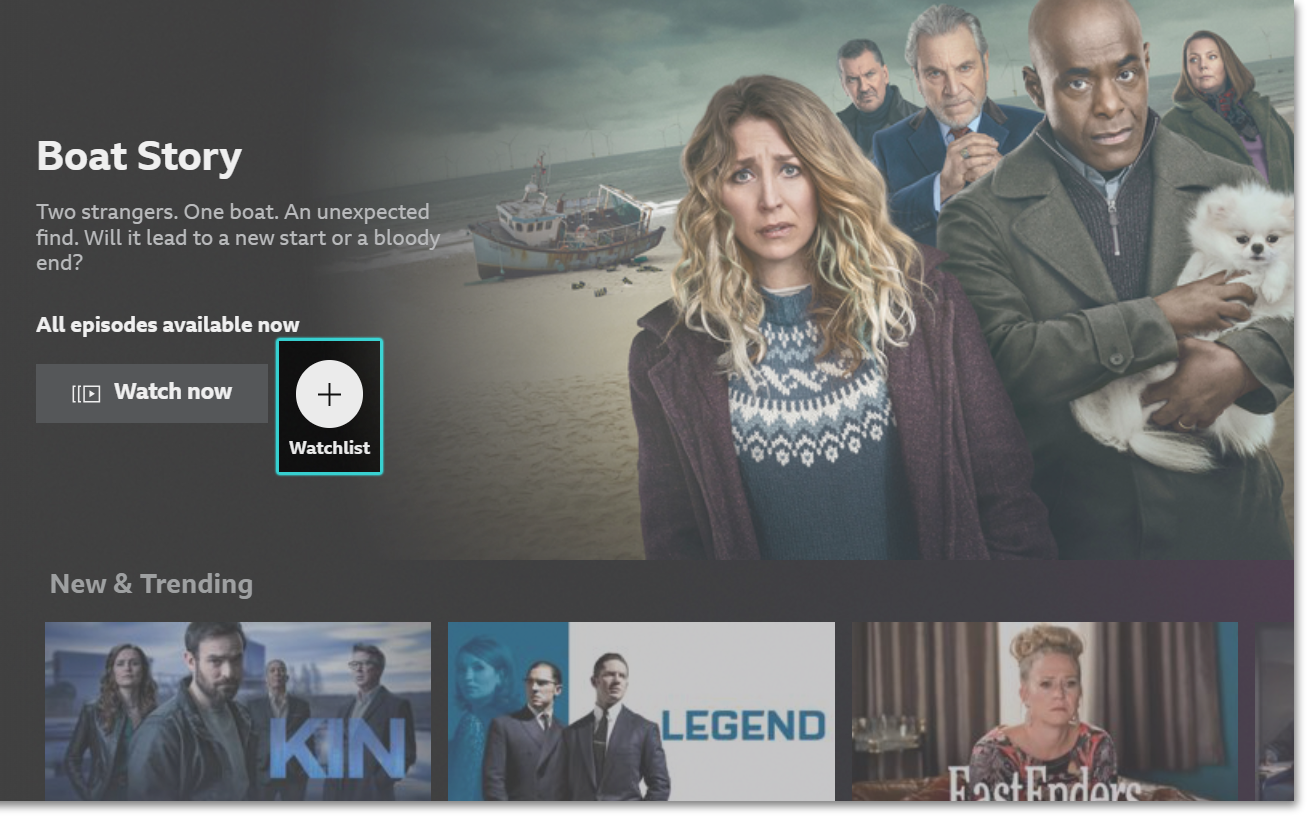
- On the BBC iPlayer TV app
Find and select the programme you would like to add. Select + Watchlist.
Where can I find my Added programmes?
- On the BBC iPlayer website
Head to Watchlist on the top right of the BBC iPlayer website. You can also scroll to the bottom of the homepage to see 'Your added programmes.' Clicking on 'Manage full list' will open your Watchlist.
- On the BBC iPlayer app for mobiles and tablets
Scroll down to the bottom of the homepage to find the 'Your added programmes...' menu. Tap the title to open your full list.
- On connected TVs or games consoles
Select + Watchlist from the left-hand menu
How do I remove a programme from my Watchlist?
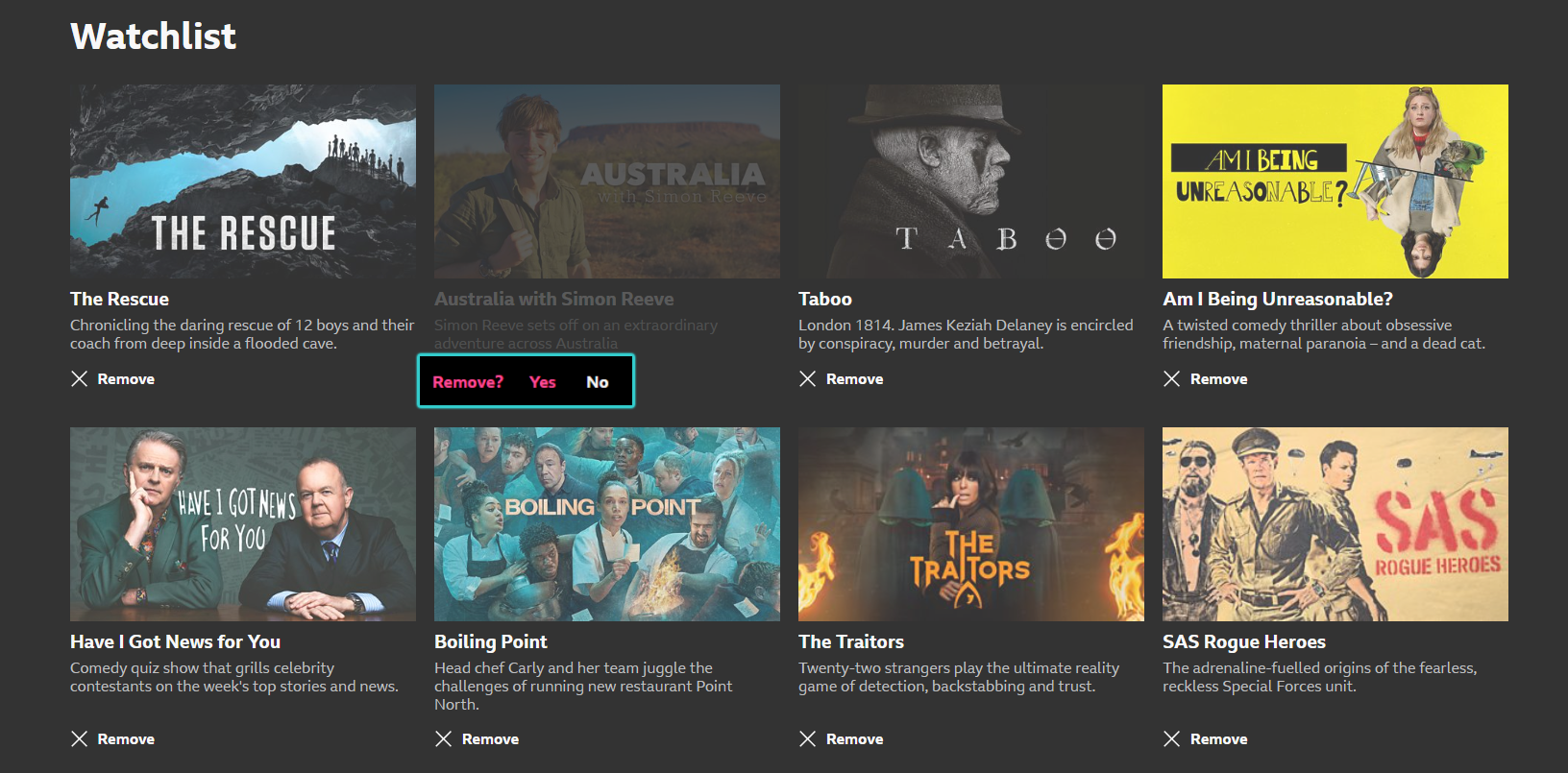
- On the BBC iPlayer website
- Head to your Watchlist at the top of the homepage
- Select X Remove underneath any programme you'd like to remove
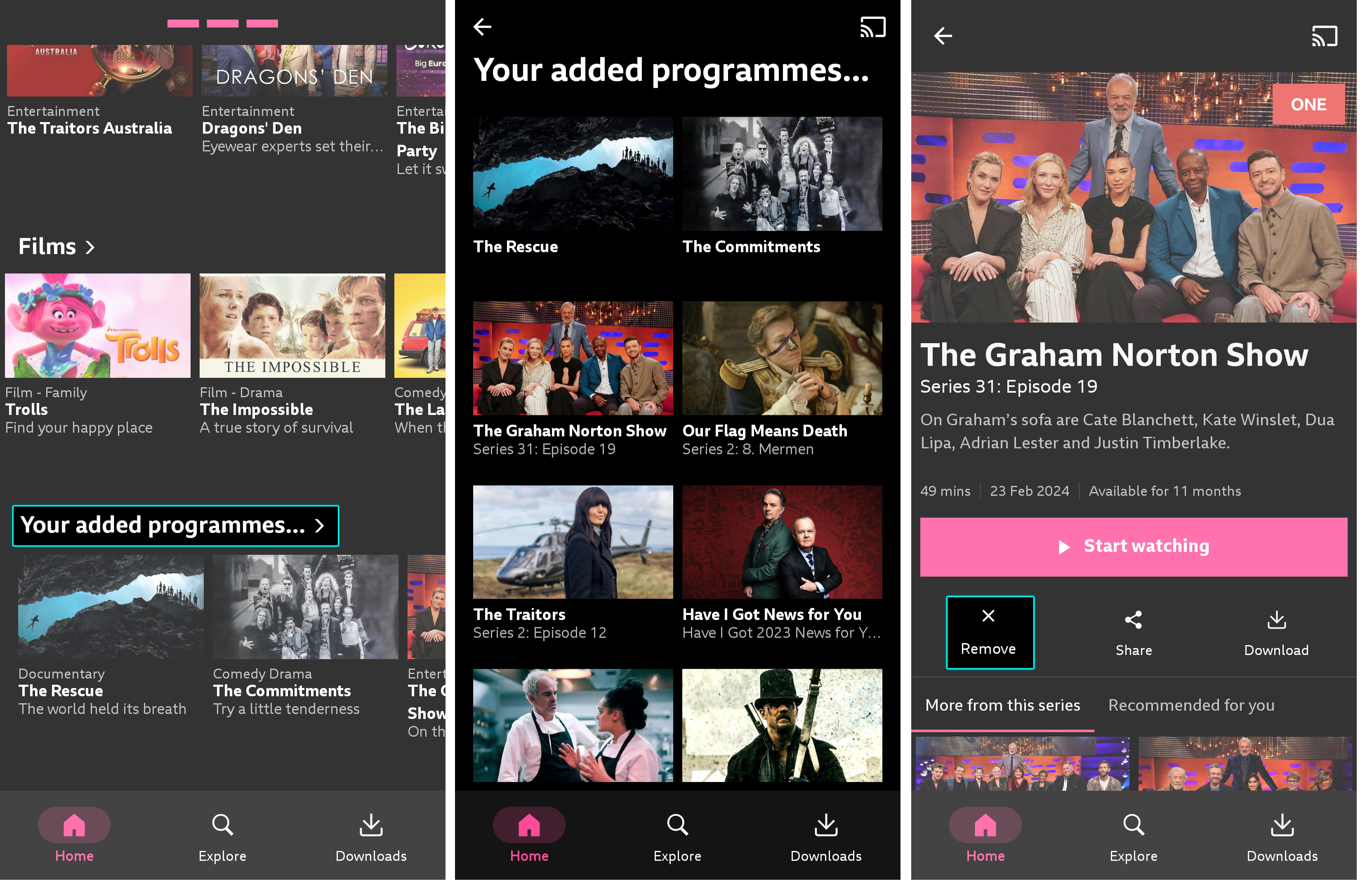
- On the BBC iPlayer app for mobiles and tablets
- Scroll to the bottom of the homepage and tap on 'Your added programmes...' or search for a programme you have previously added
- Select the programme you'd like to remove from your Added list
- Tap X Remove to remove the programme
- On connected TVs and games consoles
- Select Watchlist from the menu on the left hand side ('+' icon)
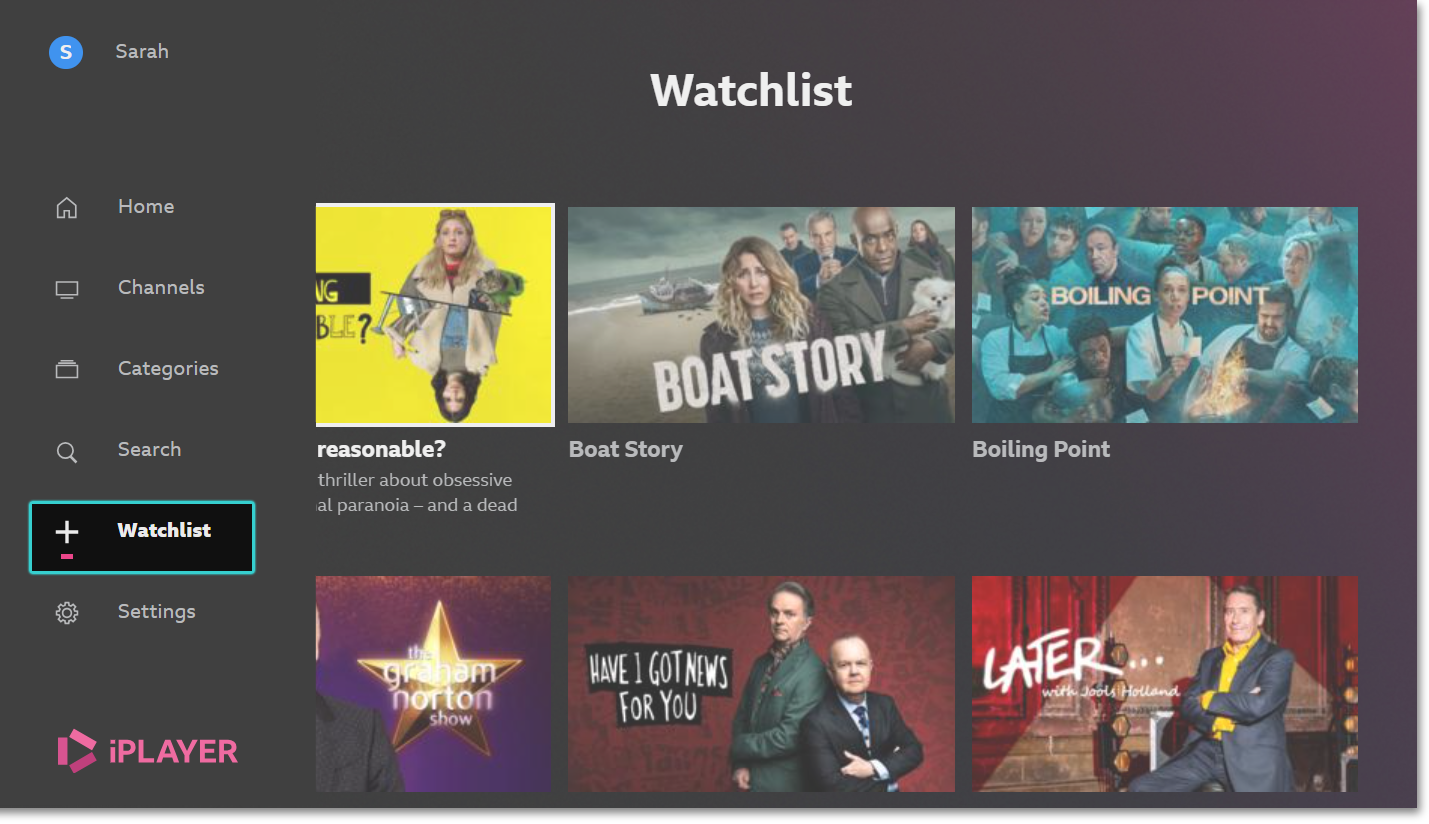
- Select the programme you'd like to remove. The Watchlist icon will show a tick. Select this icon to remove the programme.